
Did you delete your important photo accidentally from your smartphone? There is much software to recover photos for a desktop system. But for mobile phones, the situation is slightly different. Is it possible to recover deleted photos? Yes, is it easy? It depends
Especially when it comes to restoring photos on Android, there are several methods, each of which is more complicated. Let’s take a look, regardless of the operating system. Here are some alternatives to keep you scared later. Let us begin.
RELATED : Top 7 Internet Speed Test Apps
Recover Photos on Android Devices
Android is the most popular of Google’s mobile OS. Generally, With the latest android os on modern phones, their manufacturers implement a Recycle bin for the Gallery App. By using this option, user can restore photos for several days before permanently deleting them. The layers in question are Samsung Devices as well as Android One, Pixel Launcher, and other versions of Android Stock, which generally use Google Photos as a gallery. This Google Photo app has a built-in bin by default.

Before doing damage to restore photos using the app, first, you should look at the Gallery app and see if there is an option called “Trash” or “Recycle Bin” in the menu (path varies by a mobile device). If you recently deleted a photo (for a week or two), you can be sure to keep it safe. Choose what you want to recover, and they will return to your site.
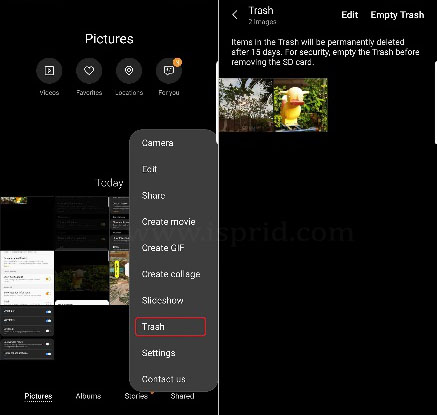
The gallery app may not have a Recycle Bin/ trash feature. In that case, you must use the app. The probability of recover deleted photos depends on having root access. Let’s see both scenarios. But first, if your photos are on a microSD card, remove it from the phone. Then connect it to pc using a card reader and try using Recuva to recover photos.
Non-Rooted Android Devices
In most cases, your phone is not rooted. If you don’t know the root status of your phone, Find your phone status using this app. If your phone, not a rooted device, the recovery probability is less. But don’t worry. Recovery applications can only access the cache and thumbnails. What does that mean? That means only small photos can restore, not the original files. It is less than what it had before but bigger than anything.

DiskDigger is one of the best application file recovery purposes. Its operation is straightforward. First, Install the app and give the required permission to access the storage and wait to analyze all the internal memory of the mobile. This application shows a mix of all the photos on the device. In other words, both deleted and not deleted photos will display. Finding photos is a difficult task, especially since-deleted photos mix with non-deleted photos
Then go through the entire collection of photos displayed and find the one you need to recover. Once you find the photo, click on it and select the “Recover” button. It will recover deleted photos. The thumbnail, instead of the original photo, reappears in the gallery and can view at least as often. To give you an idea, you can retrieve a 640 x 360-pixel thumbnail from a 4,128 x 2,322-pixel photo.
DiskDigger with Rooted Android Devices
If you have root privilege, the task will be a success more than the previous method because the application can scan your device memory deeper. The result mainly depends on when it was deleted. If it was recent, you might be lucky, but you can get it back entirely without much damage. If you don’t have root privileges, you should know that obtaining them has some risks, so please do so at your own risk.
Having root access does not guarantee that you will find deleted photos. It just increases your chances of recovery.
If you have a rooted device, open Diskdigger, and grant superuser privileges. Then select a specific partition to scan, but it is recommended that you keep it active by default. Finally, select the file format. The free version allows you to choose photos and videos, but if you need something else, you should buy the Pro version of DiskDigger.
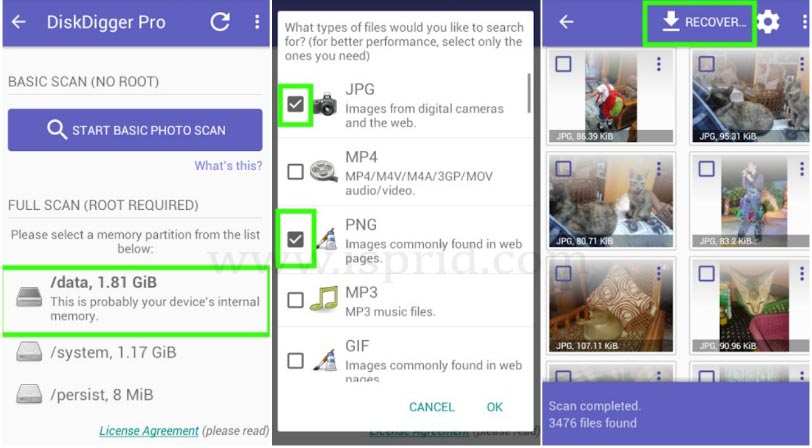
Then you have to wait a long time. Not like the previous non-rooted method, in this method, it displays only the deleted photos and videos. This will make it easier to find. Because recovered photos are certainly less than a non-rooted way. Once you find the file, click on it and select “Restore.”.
Recover Photos on iPhone
You don’t have to worry. It’s much easier On iPhone. Because the Photos app has a trash can that can hold a complete file for a month. If you delete photos recently, don’t worry if it’s there with almost complete security.
Follow the below steps to recover a deleted photo on iPhone or iPad
- First, open “Photos” and go to “Albums” and navigate down.
- Then go to “Other albums” section
- Finally, find the option called “Recently Deleted.”
There you can find every one of the files that you have deleted within the last 30 days. It also displays the time that remains to be permanently removed from the device. Finally, select the photo that you want to restore and click “Recover” Option. The images will restore to the Photo app. This is the recover deleted photos from the recently deleted option on iPhone. If the photos don’t appear in the ” Recently Deleted” bin, don’t worry. Let’s try with the backup option.
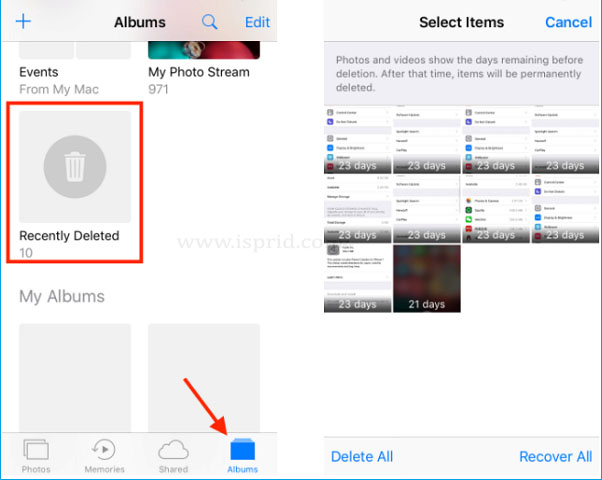
Let’s get started to recover deleted photos on your iPhone or iPad. First, open “Photos” and go to “Albums” then go to the bottom. You can find a ” Recently Deleted” option in the “Other Albums” section. Shows all files (photos or videos) deleted in the last 30 days and the remaining time until they permanently delete. Finally, select what you want to get back to the gallery and click Restore. The photo will return to its original state. If it doesn’t appear as “Deleted,” you have to try with a backup option.
Recover from an iCloud backup feature
iPhone is set up to back up photos to iCloud Library by default. Still, In iCloud, free space is very limited. It offers only 5 GB. So if it’s been full of photos and videos since you bought your phone, you may not have loaded the last one. Still, you don’t lose anything.
- Open the “Settings” app on your iPhone.
- Click on the iCloud account name at the Top.
- Select iCloud.
Make sure the Photos section is activated and that the iCloud Photos option is checked internally. If so, your photos can be safe in the cloud.

Go to www.icloud.com on your computer and log in using your Apple ID. Then you will ask to enter code, and After submitting the code, it will be displayed on your iPhone and select “Trust this browser.” Then the next window selects “Photos.”
If your photos sync to the cloud, you can view them there. Check what you want to recover and press the cloud icon with the down arrow. It will download to your computer in its original size. This is one of the option to recover deleted photos.
If you can’t find your photo in the above option, try an iTunes backup. If nothing has changed, it happens every time you connect your iPhone to your computer and open the app. Did you do a recent iTunes backup or at least from before deleting the photos? Then don’t worry, they are probably there. Connect your iPhone to your computer and press the icon marked with the image below.
Then look for the “Restore Backup” option. The creation date is shown below. If it was before deleting the photo, it’s probably there. Restore copy and finished. If you are lucky you can recover deleted photos and go back to the gallery.
Tips to Avoid these Scenarios
Have you restored your photos? If yes, you are lucky enough to recover deleted photos and get everything back to normal. Let’s see some options so that this does not happen again. You have several options, but both are the easiest. Use cloud storage services or upload photos and videos to physical media, such as computers, regularly.
- Cloud Backup
Google Photos is the most recommended because it is free and unlimited. It works with your Google account, and it works on iOS and Android, so you never lose your important image or video. Otherwise, you can use other cloud options like Dropbox, Google Drive, Mega, and other cloud Storages.
- Physical Media
When you connect your smartphone to a computer, find the folder called “DCIM.” It includes all images captured by the device camera. Then copy all the files in the DCIM folder to your hard drive. Since the folder size is large, it may take much time to copy, but at least it is a way to avoid feeling scared again.